
外观
Worked Exercise 17.1.1 Develop an animation of a simple traffic light. It should initially show a green disk; after 5 seconds, it should change to yellow; after another 5 seconds, to red; after another 5 seconds, back to green, and so on. Solution: The first step in writing an animation is deciding what handlers we’ll need. This problem doesn’t mention the mouse or the keyboard, but does mention regularly- scheduled events, so we’ll need a tick handler and a draw handler. And as usual, it’s a good idea to have a check-with clause. The next step is choosing an appropriate data type for the model. The model repre- sents the current state of the animation, and every 5 seconds we’ll need to make a decision to choose the next state of the model. There are several different data types we could use for this animation, and we’ll compare them in Exercise 17.1.4. For now, let’s say our model is a string representing the current color. There are three possible values of the model — "green", "yellow", and "red" — so we could formalize this with the definition by choices
racket
; A light-color is any of the strings "green", "yellow", or "red".The next step in designing a new data type is to write down some examples: in our case, they’re obviously "green", "yellow", and "red". We might need to write several functions involving this type, so we’ll write an inventory template:
racket
#|
(check-expect (function-on-light-color "green") ...)
(check-expect (function-on-light-color "yellow") ...)
(check-expect (function-on-light-color "red") ...)
(define (function-on-light-color c)
(cond [(string=?
c "green")
...]
[(string=?
c "yellow") ...]
[(string=?
c "red")
...]
))
|#
and an “outventory” template:
racket
#|
(check-expect (function-returning-light-color ...)
"green")
(check-expect (function-returning-light-color ...)
"yellow")
(check-expect (function-returning-light-color ...)
"red")
(define (function-returning-light-color c)
(cond [...
"green"]
[...
"yellow"]
[...
"red"]
))
|#
This animation changes every five seconds, so we need a tick handler. Its contract must be model →model. Since “model” for our purposes means “light-color”, our contract will look like
racket
; change-light :
light-color -> light-color
This function both takes in and returns a “light-color”, so we can use both the input- based and output-based templates for “light-color” to help us write the function. The input and output templates agree that we need at least three examples. The input template says there should be one taking in each of the three colors, and the output template says there should be one returning each of the three colors. Fortunately, we can meet both of these requirements as follows:
racket
(check-expect (change-light "green") "yellow")
(check-expect (change-light "yellow") "red")
(check-expect (change-light "red") "green")
The inventory template says
racket
(define (change-light color)
; color
light-color
(cond [(string=?
color "green")
...]
[(string=?
color "yellow")
...]
[(string=?
color "red")
...]
))
while the output template says each of the three colors should appear in the answer part of a cond-clause. We can satisfy both of them as follows:
racket
(define (change-light color)
; color
light-color
(cond [(string=?
color "green")
"yellow"]
[(string=?
color "yellow") "red"]
"green"]
[(string=?
color "red")
)
)
and the definition is finished (once it passes its tests). By the way, if we had decided to start with the output-based template rather than the input-based template, we would have gotten
racket
(define (change-light color)
; color
light-color
(cond [...
"green"]
[...
"yellow"]
[...
"red"]
))
and then filled in the appropriate questions to get to each answer; the final result would be the same. We still need a draw handler. Let’s name it show-light, since that’s what it does. The contract of a draw handler is always something : model →image, and we’ve already decided that “model” for our purposes means “light-color”, so our contract will be
racket
show-light :
light-color -> image
Since this function takes in a “light-color” parameter, the input template for “light- color” should help us write it. Filling in the answers for the examples, we get
racket
(check-expect (show-light "green") (circle 30 "solid" "green"))
(check-expect (show-light "yellow") (circle 30 "solid" "yellow"))
(check-expect (show-light "red") (circle 30 "solid" "red"))
For the skeleton and inventory, the template suggests
racket
(define (show-light color)
; color
light-color
(cond [(string=?
color "green")
...]
[(string=?
color "yellow")
...]
[(string=?
color "red")
...]
))
but a look at the “right answers” in the examples shows that they all match a simple pattern, so there’s an easier way:
racket
(define (show-light color)
; color
light-color
(circle 30 "solid" color)
)
This is not only shorter and simpler than doing a cond, but more flexible: the show-light function will now work equally well on orange, purple, and pink lights, should we ever decide to include those colors in the light-color data type. Inventory templates and outventory templates give you good advice in writing Hint: function definitions, but don’t follow them slavishly: sometimes there’s an easier way. We can now test the show-light function and, assuming it works, we’re done with our draw handler. The model is a string, so we’ll use (check-with string?). (If we wanted to be even safer, we could write a light-color? function that checks whether its argument is not only a string, but specifically either "red", "yellow", or "green". See Exercise 17.1.3.) The time interval is obviously 5 seconds. As we The starting model must be either "green", "yellow", or "red"; let’s start with "green". We can now run the animation as follows:
racket
(big-bang "green"
(check-with string?)
(on-draw show-light)
(on-tick change-light 5)
)
Exercise 17.1.2 Develop an animation that cycles among several pictures of your choice, changing pictures every two seconds to produce a “slide show” effect. If you use the same pictures as in Exercise 15.3.1, you can re-use a previously- Hint: written function to do much of the work for you. Exercise 17.1.3 Modify the change-light function from Exercise 17.1.1 so that when the input is "red", it returns "purple". (It should now fail one of its test cases.) What happens when you run the animation? Develop a function light-color? that takes in anything and tells whether it is one of the three values "red", "yellow", or "green". Run the animation again with light-color? as the check-with handler. What happens this time? Be sure to test light-color? on all three legal light-colors, and on a string Hint: that isn’t a light-color (e.g. "beluga"), and on a non-string (e.g. 7). And remember the rule of thumb: functions that return a Boolean can usually be written more simply without a conditional than with one. But you may need to take advantage of short-circuit evaluation (remember section 13.8). Exercise 17.1.4 Develop a traffic-light animation like Exercise 17.1.1, but using an image as the model. Develop a traffic-light animation like Exercise 17.1.1, but using a number as the model (say, 1=green, 2=yellow, 3=red). Discuss the advantages and disadvantages of each of these three choices. Exercise 17.1.5 Develop an animation that cycles among three shapes — a green circle, a yellow triangle, and a blue square — every time the mouse is moved or clicked. Try to make all three shapes approximately the same size. Exercise 17.1.6 Modify the animation of Exercise 17.1.1 so that it more nearly re- sembles a real traffic light (in most of the U.S, anyway): it’ll have three bulbs arranged vertically, of which the top one is either red or black; the middle one is either yellow or black; and the bottom one is either green or black. At every moment, exactly one of the three bulbs is “on”, and the other two are black.
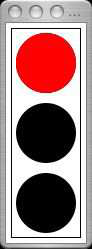
You may find it helpful to write a helper function which, given a color, finds the Hint: y-coordinate of the center of that color’s light. (They all have the same x-coordinate.) Worked Exercise 17.1.7 Develop an animation that shows a red triangle for two seconds, then a green triangle for two seconds, then a blue triangle for two seconds, and then stops. Solution: The first step in designing an animation is always deciding what handlers you need. In this case, we obviously have to deal with time, so we need a tick handler. We need to stop, so we need either a stop-when handler or a stop-with inside one of the other handlers; we’ll discuss both options. We always need a draw handler, and we should probably have a check-with clause. So what should the model be? We have at least two plausible alternatives: an image (the red, green, or blue triangle) or a string (either "red", "green", or "blue"). In either case, we’ll have to make a decision based on the current model. We know how to make decisions on images, but comparing strings is usually much more efficient, so we’ll choose as our model a string restricted to these three choices.
racket
; A shape-color is one of the strings "red", "green", or "blue".
#|
(check-expect (function-on-shape-color "red") ...)
(check-expect (function-on-shape-color "green") ...)
(check-expect (function-on-shape-color "blue") ...)
(define (function-on-shape-color c)
(cond [(string=?
c "red")
...]
[(string=?
c "green") ...]
[(string=?
c "blue")
...]
))
(check-expect (function-returning-shape-color ...)
"red")
(check-expect (function-returning-shape-color ...)
"green")
(check-expect (function-returning-shape-color ...)
"blue")
(define (function-returning-shape-color ...)
(cond [...
"red"]
[...
"green"]
[...
"blue"]
))
|#
As usual, we’ll need a draw handler to convert the model to an image. Assuming we use stop-when to decide when to stop, we can now write contracts for all the handlers:
racket
; draw handler show-triangle :
shape-color -> image
; tick handler next-color :
shape-color -> shape-color
; stop handler finished?
:
shape-color -> boolean
Let’s look at the finished? function first — the function that decides whether the animation should stop yet. When should the animation stop? Two seconds after the blue triangle appears. Which means the finished? function has to recognize whatever the model is at that time. So what is the model at that time? This isn’t obvious. It has to be a legal shape-color, so it must be either "red", "green", or "blue". And whatever it is, as soon as the model becomes that, the finished? function will return true and the animation will end. But we don’t want the animation to end immediately on turning red, or green, or blue; we want it to wait two seconds after the triangle turns blue. So maybe stop-when isn’t the way to do this, and we should instead eliminate the finished? function and call stop-with from inside one of the other handlers. The show-triangle function is straightforward, and left as an exercise for the reader. As for next-color, there are three possible examples: "red", "green", and "blue". The next color after red is green, the next color after green is blue . . . but what is the next color after blue? Two seconds after the triangle turns blue, the animation should stop, leaving the triangle still blue. So . . .
racket
(check-expect (next-color "red")
"green")
(check-expect (next-color "green") "blue")
(check-expect (next-color "blue")
(stop-with "blue"))
The input template gives us a three-clause conditional with answers to fill in. The answers are straightforward from the above test cases, giving us
racket
(define (next-color old-color-name)
; old-color-name
shape-color
(cond [ (string=?
old-color-name "red")
"green" ]
[ (string=?
old-color-name "green") "blue" ]
[ (string=?
old-color-name "blue")
(stop-with "blue") ]
))
Once this is tested, you can run the animation by calling
racket
(big-bang "red"
(check-with string?)
(on-draw show-triangle)
(on-tick next-color 2))
(To be even safer, we could write a shape-color? function, and use that instead of string? in the check-with clause. This is left as an exercise for the reader.) Exercise 17.1.8 Modify the animation of Exercise 17.1.7 to stop immediately after turning blue. I know of two ways to do this: one is similar to the above but calls stop-with in Hint: different circumstances, and the other uses a stop-when handler instead of the stop-with call in next-color. Try both. Exercise 17.1.9 Modify your animation from exercise 17.1.2 so that each picture is shown only once; after showing the last picture for two seconds, the animation ends.
17.2 Numeric decisions
Exercise 17.2.1 Modify your animation from Exercise 10.2.4 so that it only counts up to 59, then starts over at 0. Exercise 17.2.2 Write an animation that places a dot at the mouse location every time the mouse is moved or clicked. The color of this dot should be red if the x coordinate is more than the y coordinate, and green otherwise. You may find that the answers in this conditional are two complex expressions, Hint: exactly the same except for the color. You can make your function shorter and simpler by moving the conditional inside this expression, so the answers in the conditional are just color names. Exercise 17.2.3 Write an animation like that of Exercise 8.5.3, but coloring each dot either red, green, or blue, at random. Try writing a helper function that returns one of the three color names at random. Hint: Exercise 17.2.4 Write an animation a bit like Exercise 8.5.3 and a bit like Exer- cise 17.2.2: at every time interval, it adds a dot at a random location, but the dot should be red if x > y and green otherwise. Since the coordinates need to be generated randomly once, but used twice (once Hint: for choosing color, and once for positioning the dot), write a helper function that takes in the x-coordinate, y-coordinate, and previous image, and adds an appropriately-colored dot at the specified location; call this function on the results of two random calls. This function may in turn require another helper function that takes in the x and y coordinates and returns the appropriate color. Exercise 17.2.5 Modify the animation of Exercise 17.2.4 so each dot is green if it is within a distance of 50 pixels of the center of the window, and red if it is beyond that distance. Exercise 17.2.6 Modify one of your previous animations by placing a rectangular “Quit” button (a rectangle overlaid with the text “Quit”) near the bottom of the window. If the user moves or clicks the mouse inside the button, stop the animation. (We’ll see in chapter 18 how to respond only to mouse-clicks.) You might want to write a helper function in-quit-button? which takes in Hint: the x and y coordinates of the mouse and tells whether they represent a point inside the rectangle where you put the “Quit” button.
17.3 Review of important words and concepts
Using conditionals inside the handlers of an animation allows the animations to do much more interesting things. It’s not always clear what type to use as the model, as in exercise 17.1.1: each possibility has advantages and disadvantages. That’s part of what makes programming interesting.
17.4 Reference: New Functions
No new functions or syntax rules were introduced in this chapter.