
外观
As you probably know, computers are very good at doing arithmetic. But frankly, arith- metic is pretty boring. So to get our first taste of computer programming, we’ll work with pictures instead. (Behind the scenes, the computer is really using arithmetic to control these pictures, but we don’t need to worry about that for now.) Before trying anything in this chapter, make sure you’ve installed DrRacket and the picturing-programs teachpack, as described in section 0.3.
译文: 你可能知道,计算机非常擅长做算术,但坦白说,算术相当无聊。因此,为了初次接触计算机编程,我们改用图片来学习。(在后台,计算机其实是用算术来控制这些图片的,不过我们暂时不用操心这个。)在尝试本章的任何内容之前,请确保你已经按照第 0.3 节所述,装好了 DrRacket 和 picturing-programs 教学包。
1.1 Working with pictures
1.1.1 Importing pictures into DrRacket
The easiest ways to get a picture to work with is to copy it from somewhere: a Web page, or a file that’s already on your computer. Here’s how. Without quitting DrRacket, open a Web browser and find a Web page that has pictures on it. For example, many of the pictures used in this textbook are on the book Web site at http://www.picturingprograms.com/pictures/. And you can find lots of good examples on Google Image Search (http://images.google.com); for purposes of this chapter I recommend restricting your search to “small” images. Right-click (or control-click) on a picture, and choose “Copy image”. Now switch back to DrRacket, click in the Interactions pane (the lower half of the window) to the right of the “> ” prompt, and paste. You should see the same image in the DrRacket window. That’s fine for pictures on Web pages. If you have picture files (GIF, JPEG, TIFF, etc.) already on the computer you’re using, there’s another way to get them into DrRacket. Click in the Interactions pane (to the right of the “> ” prompt), then pull down the “Insert” menu and select “Insert image....” Find your way to the image file you want and select it; the image will appear in the DrRacket window.
译文: 获取一张可用的图片,最省事的办法就是把它复制过来:可以来自网页,也可以来自电脑上已有的文件。做法如下:不退出 DrRacket,打开网页浏览器,找到一张带图片的网页。例如,本教材用到的很多图片都在教材网站 http://www.picturingprograms.com/pictures/ 上;你也可以在 Google 图片搜索(http://images.google.com)里找到很多好例子,就本章而言,我建议把搜索范围限制为「小」图。在图片上右键(或按住 Control 键点击),选择「复制图片」。然后切回 DrRacket,在交互面板(窗口下半部分)的「> 」提示符右侧点击,再粘贴,你应该能在 DrRacket 窗口里看到同一张图片。这对网页上的图片没问题。如果你电脑上已经有图片文件(GIF、JPEG、TIFF 等),还有另一种方式把它们弄进 DrRacket:在交互面板里点击(「> 」提示符右侧),下拉「Insert」菜单并选择「Insert image....」,找到并选中你要的图片文件,图片就会出现在 DrRacket 窗口里。
1.1.2 The Interactions and Definitions panes
When you type anything into the Interactions pane and hit RETURN/ENTER, DrRacket shows you the “value” of what you typed. In many cases, that’ll be exactly the same thing as you typed in. For example, if you import an image into DrRacket in either of the above ways, and then hit the RETURN or ENTER key on the keyboard, you’ll see it again. Try this. When you start manipulating pictures in section 1.2, things will get more interesting. The upper half of the window is called the “Definitions pane”. We’ll get to it shortly, but for now, especially if you’re using large pictures, you may want to hide it. Pull down the “View” menu and select “Hide Definitions”; now the Interactions pane takes up the whole window, and you can see more of your pictures.
译文: 当你在交互面板里输入任何内容并按回车/Return 后,DrRacket 会显示你所输入内容的「值」。很多时候,它和你输入的完全相同。例如,如果你用上面任一种方式往 DrRacket 里导入一张图片,然后按键盘上的回车或 Return 键,你会再次看到它,试试看。当你在第 1.2 节开始操作图片时,事情会变得更有趣。窗口的上半部分叫做「定义面板」(Definitions pane),我们很快就会讲到它;但眼下——尤其是如果你在用大图——你或许想把它隐藏起来。下拉「View」菜单,选择「Hide Definitions」;这样交互面板就占满整个窗口,你能看到更多图片。
1.1.3 Choosing libraries
Once you’ve installed a library such as picturing-programs, you still have to decide whether you need it for a particular problem. For everything in the rest of this chapter, and most of this book, you’ll need picturing-programs . To tell DrRacket that you want to use that library, type
译文: 装好 picturing-programs 这样的库之后,你仍要决定某个具体问题是否需要它。对于本章余下内容以及本书大部分内容,你都需要 picturing-programs。要告诉 DrRacket 你想用这个库,请输入
racket
(require picturing-programs)in the Interactions Pane and hit RETURN/ENTER. (If your DrRacket is older than version 5.1, use
racket
(require installed-teachpacks/picturing-programs)instead.) Any time you re-start DrRacket, or hit the “Run” button at the top of the window, DrRacket will erase everything that was in the Interactions pane, so you’ll need to type this require line again before you can do anything else with pictures. We’ll see a way to avoid repeating this in section 1.6.
译文: 到交互面板并按回车/Return。(如果你的 DrRacket 版本早于 5.1,请用上面的第二行。)另外,任何时候你重新启动 DrRacket,或点击窗口顶部的「Run」按钮,DrRacket 都会清空交互面板里的所有内容,所以在能用图片做任何事之前,你需要重新输入这行 require。我们会在第 1.6 节看到避免重复输入它的办法。
1.2 Manipulating pictures
Now we’ll learn to do some more interesting things with pictures: move them around, combine them into larger pictures, and so on. For the examples in this section, I suggest copying a reasonably small, but interesting, picture from the web, such as this “calendar” picture from
译文: 现在我们要学着用图片做些更有趣的事:移动它们、把它们组合成更大的图片,等等。对于本节中的例子,我建议从网上复制一张相当小但有意思的图片,比如来自下面网址的这张「日历」图片
racket
http://www.picturingprograms.com/pictures .Click to the right of the “> ” prompt and type
(flip-vertical ⌜这里粘贴一张图片⌟
then paste or insert an image as above. Then type a right-parenthesis to match the left-parenthesis at the beginning of what you typed, and hit ENTER/RETURN. You should see the image upside-down:
译文: 然后像上面那样粘贴或插入一张图片。接着输入一个右括号,与你输入内容开头的左括号配对,然后按回车/Return。你应该会看到图片被倒置:
> (flip-vertical ⌜图片⌟ )
Practice Exercise 1.2.1 Try the same thing, with flip-horizontal in place of flip-vertical, and the image will be reflected left-to-right. Practice Exercise 1.2.2 Try rotate-cw, which rotates clockwise; rotate-ccw, which rotates counterclockwise; and rotate-180, which rotates by 180 degrees. See if you can predict ( e.g. by drawing a rough sketch on paper) what each result will look like before you hit ENTER/RETURN. By the way, at the end of this chapter is a list of the picture-manipulating functions covered in the chapter.
译文: 练习 1.2.1 把 flip-vertical 换成 flip-horizontal 再试同样的操作,图片会左右镜像翻转。练习 1.2.2 试试 rotate-cw(顺时针旋转)、rotate-ccw(逆时针旋转)和 rotate-180(旋转 180 度)。在按回车/Return 之前,试着预测每个结果会是什么样(比如先在纸上粗略画一画)。顺便说一句,本章末尾有一份本章讲过的所有图片操作函数的清单。
1.2.1 Terminology
All the stuffyou’ve typed (from the left parenthesis through the matching right paren- thesis) is called an expression. rotate-cw, rotate-ccw, and rotate-180 are all functions (also called operations or procedures) which, given a picture, produce a different picture. The picture you give them to work on is called an argument to the function. The new picture you see as a result of applying the function to the argument is called the value of the expression. By way of analogy, consider an English sentence like “Eat the banana.” It contains a verb, “eat”, which tells what to do, and an object, “the banana”, which tells what to do it to. In computer programming, we use the words function and argument instead of verb and object, but the idea is similar. A picture by itself, without parentheses or a function name, can also be thought of as an expression. It’s an extremely simple expression in which there is nothing to “do”; the value of the expression is the expression itself. Such expressions (whose values are themselves) are called literals.
译文: 你输入的所有内容(从左括号到与之配对的右括号)叫做一个表达式(expression)。rotate-cw、rotate-ccw、rotate-180 都是函数(也叫操作或过程),它们输入一张图片,产出一张不同的图片。你提供给函数去操作的图片叫该函数的参数(argument)。把函数应用到参数后得到的新图片,叫这个表达式的值(value)。打个比方:考虑一句英文「吃香蕉。」(Eat the banana.)——它含有一个动词「吃」指明动作,以及一个宾语「香蕉」指明对谁做。在计算机编程里,我们用「函数」和「参数」这两个词来代替「动词」和「宾语」,但思路是类似的。一张图片本身(不带括号、不带函数名)也可以看作一个表达式:它是一个极其简单的表达式,没有「要做」的事,其值就是它自身。这种值等于自身的表达式称为字面量(literal)。
1.2.2 Combining pictures
Pick two different images of similar size and shape, both reasonably small. Click to the right of the “> ” prompt and type (above, then an image, then another image, then a right-parenthesis. Hit ENTER/RETURN, and you should see one image stacked above the other. Try it again with the images in the opposite order. Note that whichever image you put in first ends up above the one you put in second.
译文: 挑选两张大小、形状相近、都相当小的图片。在「> 」提示符右侧点击并输入
(above,然后输入一张图片,再输入另一张图片,最后输入一个右括号。按回车/Return,你应该会看到一张图片堆叠在另一张上方。把图片按相反顺序再试一次。注意:你放进去的第一张图最终会位于你放进去的第二张图的上方。
> (above
 )
)
)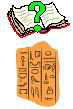 结果:第一个图堆叠在上
Practice Exercise 1.2.3 Try the same experiment, but using the same image twice rather than two different images. Practice Exercise 1.2.4 Try the same experiment with beside, which puts one image next to the other. Worked Exercise 1.2.5 Try the same experiment with overlay, which draws two im- ages in the same place, the first one overwriting part of the second. (If the first is larger than the second, you may not see any of the second at all.) Be sure to try overlay with two different images in both possible orders. Solution:
译文: 练习 1.2.3 用同一张图片试两次(而不是两张不同的图片)做同样的实验。练习 1.2.4 用 beside 做同样的实验,它把一张图片放在另一张旁边。练习 1.2.5(含解答) 用 overlay 做同样的实验,它把两张图片画在同一位置,第一张会覆盖掉第二张的一部分。(如果第一张比第二张大,你可能完全看不到第二张。)一定要用两张不同的图片、按两种可能的顺序都试试 overlay。解答:
> (overlay)
) 结果:第一个图覆盖第二个
> (overlay)
) 结果:反序,第一个覆盖第二个
Exercise 1.2.6 Now try the above, beside, and overlay operations with three or more pictures. (For overlay, you’ll want to pick a small picture as the first one, then larger and larger pictures, so you can see all of the results.)
译文: 练习 1.2.6 现在用三张或更多图片试试 above、beside 和 overlay 操作。(对于 overlay,你最好把一张小图放在第一位,然后是越来越大、越来越大的图,这样你才能看到所有结果。)
1.2.3 A Syntax Rule, Sorta
We can summarize what we’ve learned so far as follows: Syntax Rule 0 To do something to one or more images, type a left-parenthesis, the name of the operation you want to do, then the image(s) you want to do it to, then a right-parenthesis. Note that beside, above, and overlay are functions too, just like flip-vertical, rotate-ccw, etc., but they work on two or more arguments rather than one; they wouldn’t make sense applied to only one picture.
译文: 我们可以把目前所学总结如下:语法规则 0 要对一张或多张图片做某事,输入一个左括号、你想执行的操作名、你想操作的图片,然后一个右括号。注意 beside、above 和 overlay 也是函数,跟 flip-vertical、rotate-ccw 等一样,只不过它们处理的是两个或更多参数,而不是一个;只对一张图片调用它们是没意义的。
1.3 Making mistakes
In the course of typing the examples so far, you’ve probably made some mistakes. Perhaps you left out a left-parenthesis, or a right-parenthesis, or misspelled one of the operation names. This is nothing to be ashamed of: every programmer in the world makes mistakes like this every day. In fact, being a programmer is largely about mistakes: making them, recognizing them, figuring out how to fix them, figuring out how to avoid making the same mistake next time, making a different mistake instead. In many math classes, you’re given a large number of exercises to do, of which the odd-numbered ones have solutions given in the back of the book. What happens if you work out an exercise and your solution doesn’t match the one in the back of the book? In many cases, all you can do is go on to the next problem and “hope and pray” that you get that one right. Hope and prayer are not particularly effective in computer programming. Almost no computer program is exactly right on the first try. Rather than “hoping and praying” that the program will work, you need to develop the skills of identifying and categorizing mistakes, so that when you see a similar mistake in the future, you can recognize it as similar to this one, and fix it in the same way. DrRacket provides a variety of useful error messages. Let’s look at several of the most likely mistakes you might have made up to this point, make them on purpose, and see what message we get. That way, when you make similar mistakes by accident in the future, you’ll recognize the messages.
译文: 在输入上面的这些例子时,你很可能犯过一些错误——也许漏了一个左括号、漏了一个右括号,或者拼错了一个操作名。这没什么好难为情的:世界上每个程序员每天都在犯这样的错。事实上,当程序员在很大程度上就是在跟错误打交道:制造错误、识别错误、想办法修复错误、想办法下次不再犯同样的错,然后再犯一个不同的错。在很多数学课上,你会做大量练习,其中奇数号题的答案附在书后。如果你做了一道题,而你的答案和书后的对不上,会发生什么?很多情况下你只能继续做下一道题,然后「祈祷」这道能做对。但在计算机编程里,祈祷并不怎么管用。几乎没有哪个程序第一次就能完全正确。与其「祈祷」程序能跑通,你需要练就识别和归类错误的技能,这样将来看到类似错误时,你能认出它和这个错误是同一类,并用同样的方式修复。DrRacket 提供了各种有用的错误信息。我们来看看到目前为止你最可能犯的几种错误,故意犯一遍,看看会得到什么提示。这样以后你不小心犯了类似错误时,就能认出这些提示。
1.3.1 Leaving out the beginning left-parenthesis
Ordinarily, when you type a right-parenthesis, DrRacket helpfully shades everything be- tween it and the matching left-parenthesis.
译文: 通常,当你输入一个右括号时,DrRacket 会贴心地为它和与之匹配的左括号之间的所有内容着色。
racket
( flip-vertical
)
> Your first sign that you’ve left out a left-parenthesis is that when you type the right- parenthesis, it’ll be highlighted in RED because DrRacket can’t find “the matching left- parenthesis”. To see this, try typing flip-vertical, then pasting a picture, and typing a right parenthesis.
译文: 你漏掉左括号的第一个迹象是:当你输入右括号时,它会以红色高亮,因为 DrRacket 找不到「匹配的左括号」。要看到这一点,试着输入 flip-vertical,然后粘贴一张图片,再输入一个右括号。
racket
flip-vertical
)
> If you go ahead and hit RETURN/ENTER anyway, one of several things will happen. Some versions of DrScheme/DrRacket will treat flip-vertical and the picture as two separate expressions: you’ll see the word flip-vertical; then on the next line, the picture you pasted in; and on the next line, the error message read: unexpected ’)’. In other versions, it just waits for you to type something reasonable. But nothing you can add after the right-parenthesis will make it reasonable. There are several things you can do: you can move (with the arrow keys or the mouse) to where the left parenthesis should have been, put it in, then move to the end and hit ENTER again; or you can hit BACKSPACE or DELETE until the right-parenthesis is gone (at which point you’ve simply typed two expressions on one line, and it’ll give you the values of both).
译文: 如果你不管怎样还是按了回车/Return,会发生几种情况之一。某些版本的 DrScheme/DrRacket 会把 flip-vertical 和图片当作两个独立的表达式:你会先看到 flip-vertical 这个词;下一行是你粘贴进去的图片;再下一行是错误信息:unexpected ')'(意外的右括号)。其他版本则只是等着你输入合理的内容。但任何你加在右括号后面的东西都无法让它变得合理。你可以做几件事:用方向键或鼠标移到本应是左括号的位置,把它补进去,然后移到末尾再按一次回车;或者按退格/Delete,直到右括号消失(此时你其实是在同一行输入了两个表达式,它会给出两者的值)。
1.3.2 Leaving out the ending right-parenthesis
Sometimes what you need to type between parentheses is longer than will fit on one typed line, e.g. several large pictures. So DrRacket allows you to hit ENTER/RETURN in the middle, and type or paste the next thing on the next line.
译文: 有时你要输入在括号之间的内容比一行能容纳的更长,比如好几张大图。所以 DrRacket 允许你在中间按回车/Return,把下一部分输入或粘贴到下一行。
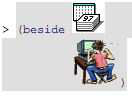
Note also that DrRacket will automatically indent the next line to line up nicely with the previous line. This is another clue that DrRacket thinks you’re still inside an expression. If you don’t want the line indented, you can hit DELETE/BACKSPACE a few times, but that doesn’t change the fact that you’re still inside an expression. If you leave out the ending right-parenthesis, DrRacket thinks you’ve just gone to the next line and still want to type some more, so it’ll quietly wait for you to finish. There is no error message, because DrRacket doesn’t know that you’ve done anything wrong.
译文: 还要注意,DrRacket 会自动缩进下一行,使它与上一行对齐美观。这是 DrRacket 认为你还在表达式内部的另一个线索。如果你不想让这一行缩进,可以按几次 Delete/Backspace,但这并不能改变你仍处于表达式内部的事实。如果你漏掉了结尾的右括号,DrRacket 会认为你只是换到了下一行、还想继续输入,于是它静静地等你写完。不会有错误信息,因为 DrRacket 并不知道你做错了什么。
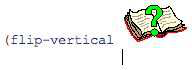
Fortunately, this is easy to fix, even if you’ve already hit ENTER/RETURN: just type the missing right-parenthesis, DrRacket will shade back to the left-parenthesis on the previous line, and you can hit ENTER/RETURN again to apply the operation.
译文: 幸运的是,即使你已经按了回车/Return,这也很好修复:只要输入缺失的右括号,DrRacket 就会为前一行上的左括号着色,你再按一次回车/Return 即可执行操作。
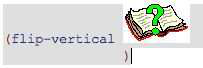
1.3.3 Misspelling the operation name
Suppose you mistyped flip-vertical as flip-verticle. Any human would realize what was wrong, and guess that you actually meant flip-vertical. But computers aren’t particularly good at “common sense” or guessing what you meant, so instead DrRacket produces the error message reference to an identifier before its definition: flip-verticle What does this mean? “Identifier” simply means “name”; all the operations like flip-vertical, above, overlay, etc. are referred to by their names, but the name flip-verticle hasn’t been defined. However, DrRacket leaves open the possibility that it might be defined in the future. By the way, you might wonder why DrRacket isn’t programmed to recognize that flip-verticle was probably supposed to be flip-vertical. This could be done, but if DrRacket had this “guessing” capability, it would eventually guess wrong without even telling you it was making a guess at all, and that kind of mistake is incredibly difficult to track down. The authors of DrRacket decided it was better to be picky than to try to guess what you meant. For the same reason, DrRacket is case-sensitive, that is, it doesn’t recognize FLIP-VERTICAL or Flip-Vertical. Likewise, DrRacket doesn’t recognize names that have spaces in the middle, such as flip - vertical: it thinks you’re calling a function named flip with - as its first argument and vertical as the second, which doesn’t make sense.
译文: 假设你把 flip-vertical 错拼成了 flip-verticle。任何人都能意识到哪里出了问题,猜到你其实是想写 flip-vertical。但计算机并不擅长「常识」或猜测你的意图,所以 DrRacket 会给出错误信息:
reference to an identifier before its definition: flip-verticle(在定义前引用了标识符:flip-verticle)。这是什么意思?「标识符」就是「名字」;所有像 flip-vertical、above、overlay 这样的操作都靠名字来引用,但 flip-verticle 这个名字还没有被定义。不过,DrRacket 保留了它将来可能被定义的可能性。顺便问一下,你可能好奇为什么 DrRacket 没有被编程成能识别 flip-verticle 很可能本意是 flip-vertical。这其实可以做到,但如果 DrRacket 有了这种「猜测」能力,它最终会猜错,而且不会告诉你它做了猜测,这类错误极其难以排查。DrRacket 的作者们决定:与其猜测你的意图,不如严格挑剔。出于同样的原因,DrRacket 区分大小写,也就是说它不识别 FLIP-VERTICAL 或 Flip-Vertical。同样,DrRacket 也不识别中间带空格的名称,比如flip - vertical:它会认为你在调用一个名为 flip 的函数,把-当作第一个参数、vertical 当作第二个参数,这说不通。
1.3.4 Too few or too many arguments
Try typing (flip-vertical) and hitting ENTER/RETURN. You’ll see the error message procedure flip-vertical: expects 1 argument, given 0. This is a more helpful message, telling you precisely what went wrong: the flip-vertical operation (or “procedure”) expects to work on an image, and you haven’t given it one to work on. Try typing (flip-vertical, then pasting in two images (or the same one twice), then typing a right-parenthesis. Again, the error message is fairly helpful: procedure flip-vertical: expects 1 argument, given 2:... The rest of the error message tells what the arguments were, which isn’t very helpful for images, but will be very helpful when we start working with numbers, names, etc.
译文: 试试输入
(flip-vertical)并回车/Return。你会看到错误信息:procedure flip-vertical: expects 1 argument, given 0(过程 flip-vertical:期望 1 个参数,却给了 0 个)。这条信息更有帮助,它精确告诉你哪里出错了:flip-vertical 操作(或「过程」)期望作用于一张图片,而你一张也没给它。试试输入(flip-vertical,然后粘贴两张图片(或同一张两次),再输入一个右括号。同样,这条错误信息也相当有帮助:procedure flip-vertical: expects 1 argument, given 2:...(期望 1 个参数,却给了 2 个:……)。错误信息的其余部分会告诉你参数是什么,这对图片没什么用,但等我们开始处理数字、名字等内容时会非常有用。
1.3.5 Putting the operation and arguments in the wrong order
Suppose you wanted to put two pictures side by side, but had forgotten that the operation goes before the arguments; you might type something like
译文: 假设你想把两张图片并排放在一起,却忘了操作符要放在参数前面;你可能会输入类似这样的东西
( beside)
beside)You would get the error message function call: expected a defined name or a primitive operation after an open parenthesis, but found something else Again, this is a fairly specific and helpful message: the only things that can legally come after a left-parenthesis (for now) are function names, and a picture of a calendar is not a function name.
译文: 你会得到错误信息:
function call: expected a defined name or a primitive operation after an open parenthesis, but found something else(函数调用:左括号后应跟一个已定义的名字或原始操作,却遇到了别的东西)。同样,这是一条相当具体而有帮助的信息:目前,能合法出现在左括号后面的只有函数名,而一张日历图片并不是函数名。
1.3.6 Doing something different from what you meant
All these error messages can get really annoying, but they’re really your friends. Another kind of mistake is much harder to figure out and fix because there is no error message. Suppose you wanted a left-to-right reflection of a particular picture, and you typed (flip-vertical, then pasted in the picture, and typed a right-parenthesis. You wouldn’t get an error message, because what you’ve typed is perfectly legal. You would, however, get a wrong answer because what you’ve typed isn’t what you meant. DrRacket can’t read your mind, so it doesn’t know what you meant; it can only do what you said. (This is one of the most frustrating things about computers, so much so that computer science students sometimes joke about a newly-defined function named dwim, for “Do What I Mean”.) Of course, typing flip-vertical when you mean flip-horizontal is a fairly simple mistake, but in general these “wrong answer” errors are among the hardest ones to find and fix, because the computer can’t give useful error messages to help you.
译文: 所有这些错误信息可能会让人烦,但它们其实都是你的朋友。另一种错误更难发现和修复,因为根本没有错误信息。假设你想要某张图片的左右镜像,却输入了
(flip-vertical,然后粘贴图片,再输入右括号。你不会得到错误信息,因为你输入的内容完全合法。然而你会得到一个错误的结果,因为你输入的不是你本意的内容。DrRacket 不会读心,所以它不知道你是什么意思;它只会照你所说去做。(这是计算机最让人抓狂的一点,以至于计算机系的学生有时会开个玩笑:定义一个新函数 dwim,代表「做我所想」(Do What I Mean)。)当然,把本意 flip-horizontal 错打成 flip-vertical 是个相当简单的错误,但总的来说,这类「错误答案」错误是最难发现和修复的,因为计算机无法给出有用的错误信息来帮你。
1.4 Getting Help
You’ve seen a number of builtin functions above, and you’ll see many more in future chapters. Nobody can remember all of these, so (as mentioned in section 0.3.5) DrRacket has a “Help Desk” feature that allows you to look up a function by name. From the Help menu, choose “Help Desk”; it should open a Web browser window with a search box near the top. (By the way, this works even if you don’t have a net connection at the moment.) Type the name of a function you want to know about, like rotate-cw or above, and it’ll show you links to all the pages it knows about that function. (If there are more than one, look for one that’s “provided from picturing-programs” or “provided from 2htdp/image”.) You can also type picturing-programs into the search box, and it’ll show you a link to documentation about the whole teachpack.
译文: 你在上面已经见过不少内置函数,后面章节还会看到更多。没人能记住所有这些,所以(正如第 0.3.5 节提到的)DrRacket 有一个「帮助台」(Help Desk) 功能,允许你按名字查找函数。从 Help 菜单选择「Help Desk」;它会打开一个网页浏览器窗口,顶部附近有一个搜索框。(顺便说一句,即使你当时没有联网也能用。)输入你想了解的函数名,比如 rotate-cw 或 above,它会显示它所知道的关于该函数的所有页面链接。(如果不止一个,找一个标注「provided from picturing-programs」或「provided from 2htdp/image」的。)你也可以在搜索框里输入 picturing-programs,它会显示关于整个教学包的文档链接。
1.5 More complex manipulations
Worked Exercise 1.5.1 What would you do if you wanted to see a picture, beside its left-to-right reflection? Solution: You know how to get a reflection using flip-horizontal, and you know how to put one image next to another using beside, but how do you do both? You really want to put one image beside another, one of which is a reflection of the other. Very simply, instead of pasting an image as one of the operands of the beside function, type in an expression involving flip-horizontal:
译文: 练习 1.5.1(含解答) 如果你想把一张图片和它的左右镜像并排放,你会怎么做?解答:你已经知道用 flip-horizontal 得到镜像,也知道用 beside 把一张图片放在另一张旁边,但怎么两者同时做呢?你真正想要的是把一张图片放在另一张旁边,而其中一张是另一张的镜像。很简单:与其在 beside 函数里粘贴一张图片作为操作数,不如输入一个涉及 flip-horizontal 的表达式:
> (beside ⌜图片⌟(flip-horizontal ⌜图片⌟))
 结果:原图 + 水平翻转,左右并排
Since (flip-horizontal ) would be a perfectly good expression in its own right, but it’s also a part of a larger expression, we call it a sub-expression. Exercise 1.5.2
译文: 由于
(flip-horizontal ...)本身是一个完全合法的表达式,但它又是一个更大表达式的一部分,所以我们称它为子表达式(sub-expression)。练习 1.5.2

Write an expression which displays a picture beside its top-to-bottom reflection. Exercise 1.5.3
译文: 编写一个表达式,把一张图片和它上下镜像翻转后的图并排显示。练习 1.5.3

Write an expression which displays a picture beside its 180-degree rotation. Exercise 1.5.4
译文: 编写一个表达式,把一张图片和它旋转 180 度后的图并排显示。练习 1.5.4

Write an expression which displays four copies of a pic- ture arranged in a two-by-two square. There are at least two different ways to do this, using what you’ve seen so far. Hint: Either one is acceptable, as long as you type an expression that uses the smaller picture, and its value is the correct larger picture. Exercise 1.5.5 Write an expression which displays four copies of a picture in a two-by-
译文: 编写一个表达式,把一张图片的四个副本排成 2×2 的方块。至少有两种做法,用你目前所学就能实现。提示:只要输入一个使用小图片的表达式,且它的值是正确的较大图片,哪种都行。练习 1.5.5 编写一个表达式,把一张图片的四个副本排成 2×2 方块,且每一格都旋转不同角度:右上角顺时针转 90 度,左下角逆时针转 90 度,右下角转 180 度。

two square, each rotated differently: the top-right one should be rotated 90 degrees clockwise, the bottom-left one 90 degrees counter-clockwise, and the bottom-right one 180 degrees. Hint: This expression will be fairly long and complicated; feel free to break it up over several lines. In particular, if you hit ENTER/RETURN after each right-parenthesis, DrRacket will automatically indent the next line in a way that indicates the structure of the expression: things inside more layers of parentheses are indented farther. If you solve this problem the way I expect, it’ll work well with square or nearly- Hint: square pictures, but won’t look so good with long skinny pictures. We’ll see how to improve it later.
译文: 提示:这个表达式会相当长而复杂;可以放心地把它拆成好几行。特别是,如果你在每个右括号后面按回车/Return,DrRacket 会自动缩进下一行,以显示表达式的结构:嵌套更多层括号的内容会缩进得更深。如果你按我期望的方式解决这个问题,它对正方形或接近正方形的图片效果很好,但对又长又瘦的图片就不那么好看了。我们以后再想办法改进它。
1.6 Saving Your Work: the Definitions pane
When you type an expression in the Interactions pane and hit RETURN/ENTER, you immediately see the value of that expression. But as soon as you quit DrRacket, all your work is lost. Furthermore, even if you’re not quitting DrRacket yet, sometimes you want to write expressions now and see the results later. If you’ve hidden the Definitions pane earlier, show it again: pull down the “View” menu and choose “Show Definitions”. Click the mouse in the Definitions pane and type in the line
racket
(require picturing-programs)or, if you have an older version of DrRacket,
racket
(require installed-teachpacks/picturing-programs)as the first line of the Definitions pane. (Now that it’s in the Definitions pane, you won’t have to keep typing it again and again in the Interactions pane.) Hit RETURN/ENTER, and nothing will happen (except that the cursor will move to the next line). From now on, almost every Definitions Pane should start with that line. On the next line of the Definitions pane, type in one of the expressions you’ve already worked with. Hit RETURN/ENTER. Type in another expression, and another. (These don’t have to be on separate lines, but it’s easier to keep track of what you’re doing if they are. In fact, if they’re long, complicated expressions, you might want to put a blank line or two in between them so you can easily see where one ends and the other begins.) Now, to see how these expressions work, click the “Run” button just above the Def- initions pane. Anything that was in the Interactions pane before will disappear and be replaced by the values of the expressions in the Definitions pane, in order. If any of them were illegal (e.g. mismatched parentheses, misspelled function names, etc.) it’ll show an error message in the Interactions pane, and won’t go on to the next expression. If you’ve worked out a big, complicated expression (or several), and want to save it to use again tomorrow, 1. type the expression(s) into the Definitions window, 2. pull down the “File” menu, 3. choose “Save Definitions”, 4. navigate to the appropriate folder on your computer, 5. type a suitable filename (I recommend a name ending with “.rkt”), and 6. click “Save” or “OK” or whatever it is on your computer. Now you can quit DrRacket, double-click the new file, and it should start DrRacket again with those expressions in the Definitions window. Or you can double-click DrRacket, pull down the “File” menu, choose “Open...”, and find the desired file to bring it into the Definitions window.
译文: 当你在交互面板里输入一个表达式并按回车/Return,你会立刻看到该表达式的值。但一旦你退出 DrRacket,你所有的工作都会丢失。此外,即使你还不打算退出 DrRacket,有时你也想现在就写好表达式、以后再看结果。如果你之前隐藏了定义面板,现在把它显示出来:下拉「View」菜单,选择「Show Definitions」。在定义面板里点击鼠标,输入这一行(或,如果你的 DrRacket 版本较旧,用上面的第二行)作为定义面板的第一行。(既然它已经在定义面板里,你就不必在交互面板里一遍又一遍地输入它了。)按回车/Return,什么都不会发生(只是光标移到下一行)。从今往后,几乎每个定义面板都应该以这行开头。在定义面板的下一行,输入你之前用过的一个表达式,按回车/Return。再输入一个表达式,再一个。(它们不必分在不同行,但分开更容易看清你在做什么。事实上,如果它们又长又复杂,你可能想在它们之间留一两个空行,这样能轻松看出一个在哪里结束、下一个在哪里开始。)现在,要看看这些表达式是怎么工作的,点击定义面板正上方的「Run」按钮。交互面板里之前的内容会消失,被定义面板里各表达式的值按顺序替代。如果有任何一个是非法的(比如括号不匹配、函数名拼错等),它会在交互面板里显示一条错误信息,并且不会继续处理下一个表达式。如果你已经写出了一个大而复杂的表达式(或好几个),想保存下来明天再用,那么:1. 把表达式输入到定义窗口;2. 下拉「File」菜单;3. 选择「Save Definitions」;4. 导航到你电脑上合适的文件夹;5. 输入一个合适的文件名(我建议以「.rkt」结尾的名字);6. 点击「Save」或「OK」或你电脑上对应的按钮。现在你可以退出 DrRacket,双击这个新文件,它会再次启动 DrRacket,并在定义窗口里带上这些表达式。或者你可以双击 DrRacket,下拉「File」菜单,选择「Open...」,找到想要的文件夹把它带进定义窗口。
1.7 Working through nested expressions: the Stepper
When you develop a big, complicated expression and it doesn’t work the way you expected it to, you need a way to see what it’s doing along the way. The Stepper feature of DrRacket allows you to see the values of sub-expressions, one at a time, until you get to the whole expression. For example, suppose you were working on exercise 1.5.2, and your (incorrect) attempt at the answer was (beside (flip-horizontal )) If you type this into Interactions and hit RETURN/ENTER, or type it into Definitions and click the “Run” button, you’ll get an answer, but not the right answer. To see what’s going wrong, type the expression into the Definitions pane and, instead of clicking the “Run” button, click the “Step” button. You should see a new window, showing you the original expression on the left, and a slightly modified version of it on the right. In ) on the left will be highlighted particular, the sub-expression (flip-horizontal in green, while its value, another picture, will be highlighted in purple on the right. Everything else about the two expressions should be identical. Worked Exercise 1.7.1 Show the sequence of steps the Stepper would take in eval- uating the expression
译文: 当你写出一个大而复杂的表达式,而它没有按你期望的方式工作时,你需要一种方法来看清它到底在做什么。DrRacket 的步进器(Stepper)功能允许你一次一个地查看子表达式的值,直到整个表达式。例如,假设你正在做练习 1.5.2,而你(不正确的)答案是
(beside (flip-horizontal ...))。如果你把它输入交互面板并回车/Return,或输入定义面板并点击「Run」按钮,你会得到一个答案,但不是正确的答案。要看哪里出了问题,把表达式输入定义面板,不要点「Run」,而是点「Step」按钮。你会看到一个新窗口,左边是原始表达式,右边是一个略作修改的版本。特别是,左边的子表达式(flip-horizontal ...)会以绿色高亮,而它的值(另一张图片)在右边以紫色高亮。两个表达式的其余部分应当完全相同。练习 1.7.1(含解答) 展示步进器在求值以下表达式时采取的步骤序列
racket
(beside
(flip-horizontal
))
At each step, underline the sub-expression that’s about to be replaced. Solution:
译文: 每一步,请在即将被替换的子表达式下划线标出。解答:
racket
Step 1:
(beside
(flip-horizontal
) )
racket
)
Step 2:
(beside
racket
Step 3:Exercise 1.7.2 Show the sequence of steps the Stepper would take in evaluating the expression
译文: 练习 1.7.2 展示步进器在求值以下表达式时会采取的步骤序列
racket
) (rotate-cw
))
(beside (rotate-ccw
1.8 Syntax and box diagrams
Recall rule 0: To do something to one or more images, type a left-parenthesis, the name of the operation you want to do, then the image(s) you want to do it to, then a right-parenthesis. In fact, as we’ve seen, things are a little more general and flexible than that: instead of putting images inside the parentheses, we can also put sub-expressions whose values are images. Indeed, these sub-expressions may in turn contain sub-expressions of their own, and so on. At the same time, we’ve seen that certain attempts at expressions aren’t grammatically legal. Computer scientists often explain both of these issues — how do you perform an operation, and what is or isn’t a legal expression — at the same time, by means of syntax rules, and we now rephrase things in that style. Syntax Rule 1 Any picture is a legal expression; its value is itself. Syntax Rule 2 A left-parenthesis followed by a function name, one or more legal expres- sions, and a right parenthesis, is a legal expression. Its value is what you get by applying the named function to the values of the smaller expressions inside it. Note that we can understand all the expressions we’ve seen so far by using a combi- nation of these two rules, even the ones with several levels of nested parentheses, because rule 2 allows any legal expressions to appear as arguments to the function, even expres- sions constructed using rule 2 itself. Let’s illustrate this using “box diagrams”. We’ll start with an expression, then put a box around a sub-expression of it. Over the box we’ll write a 1 or a 2 depending on which rule justifies saying that it is an expression. is a legal Worked Exercise 1.8.1 Draw a box diagram to prove that the picture expression. Solution: Rule 1 tells us that any picture is a legal expression, so we put a box around it with the number 1 over it: Worked Exercise 1.8.2 Draw a box diagram to prove that (rotate-180 ) is a legal expression. Solution: We’ll start from the inside out. The picture of the calendar is a legal expression
译文: 回顾规则 0:要对一张或多张图片做某事,输入一个左括号、操作名、你想操作的图片,然后一个右括号。事实上,正如我们所看到的,事情比这更一般、更灵活:除了把图片放进括号里,我们也可以放进那些值为图片的子表达式。而且,这些子表达式还可以再包含它们自己的子表达式,依此类推。同时,我们也看到某些表达式的尝试在语法上是不合法的。计算机科学家常常通过语法规则同时解释这两个问题——如何执行一个操作,以及什么合法什么不合法——我们现在就用这种风格重新表述。语法规则 1 任何图片都是合法表达式,其值就是它自身。语法规则 2 一个左括号后跟一个函数名、一个或多个合法表达式,再跟一个右括号,构成一个合法表达式。它的值是把具名函数应用到它内部较小各表达式的值上所得的结果。注意,我们可以用这两条规则的组合来理解迄今见过的所有表达式,即使是那些有多层嵌套括号的,因为规则 2 允许任何合法表达式作为函数的参数,甚至包括用规则 2 本身构造的表达式。我们用「盒图」(box diagram) 来说明这一点。我们从一个表达式开始,然后把它的一个子表达式框起来。在框上方我们写一个 1 或 2,取决于哪条规则证明它是一个表达式。练习 1.8.1(含解答) 画一个盒图证明图片是合法表达式。解答:规则 1 告诉我们任何图片都是合法表达式,所以我们在它周围画一个框,上方写数字 1:练习 1.8.2(含解答) 画一个盒图证明
(rotate-180 ⌜图⌟)是合法表达式。解答:我们从内向外开始。日历图片是合法表达式
racket
1by rule 1, so we have (rotate-180
译文: 通过规则 1,所以我们有
(rotate-180
racket
)Now that we know that the inner part is a legal expression, we can use Rule 2 (which requires a left-parenthesis, a function name, an expression, and a right-parenthesis) to show that the whole thing is a legal expression:
译文: 现在我们知道内部部分是合法表达式,就可以用规则 2(它要求左括号、函数名、一个表达式和右括号)来证明整个东西是合法表达式:
racket
2
1
(rotate-180
)
Exercise 1.8.3 Draw a box diagram to prove that ) (rotate-cw is a legal expression. Worked Exercise 1.8.4 Draw a box diagram to prove that
译文: 练习 1.8.3 画一个盒图证明
) (rotate-cw是合法表达式。练习 1.8.4(含解答) 画一个盒图证明
(beside ) is a legal expression. Solution: We need to use rule 1 twice:
译文:
(beside ⌜图⌟ ⌜图⌟)是合法表达式。解答:我们需要用规则 1 两次:
racket
1
1
racket
(beside
)
Once we’re convinced that both pictures are legal expressions, we need to use rule 2 to show that the whole thing is a legal expression:
译文: 一旦我们确信两张图片都是合法表达式,就需要用规则 2 证明整个东西是合法表达式:
racket
1
1
racket
(beside
)
Worked Exercise 1.8.5 Draw a box diagram to prove that
译文: 练习 1.8.5(含解答) 画一个盒图证明
( beside ) is a legal expression. Solution: We can use rule 1 twice to convince ourselves that the two pictures are legal expressions:
译文:
( ⌜图⌟ beside ⌜图⌟ )是合法表达式。解答:我们可以用规则 1 两次,让自己确信两张图片都是合法表达式:
racket
1
1
racket
(
beside
)
But now we’re stuck: there is no rule in which an expression can appear between a left parenthesis and a function name. Since we are unable to prove that this is a legal expression, we conclude that it is not a legal expression. Indeed, if you typed it into DrRacket, you would get an error message: function call: expected a defined name or a primitive operation name after an open parenthesis, but found something else. Whenever you type a left-parenthesis, Scheme expects the next things to be the name of an operation, and the calendar picture is not the name of an operation. Exercise 1.8.6 Draw a box diagram to prove that (rotate-cw is a legal expression. This should be impossible; it isn’t a legal expression. But how far can you get? Hint: Why is it not a legal expression? Exercise 1.8.7 Draw a box diagram to prove that (rotate 5 ) is a legal expression. This too should be impossible. In fact, it is a legal expression, but not using the Hint: two rules you’ve seen so far; we’ll add some more syntax rules later. Worked Exercise 1.8.8 Draw a box diagram to prove that (flip-horizontal )) (beside is a legal expression. Solution: As usual, we’ll work from the inside out. Each of the two pictures is obviously a legal expression by rule 1:
译文: 但现在我们卡住了:没有任何规则允许表达式出现在左括号和函数名之间。既然我们无法证明这是合法表达式,我们就断定它不是合法表达式。事实上,如果你把它输入 DrRacket,你会得到错误信息:
function call: expected a defined name or a primitive operation name after an open parenthesis, but found something else。每当你输入左括号,Scheme 都期望接下来的东西是操作名,而日历图片不是操作名。练习 1.8.6 画一个盒图证明(rotate-cw是合法表达式。这应该是不可能的;它不是合法表达式。但你能走多远?提示:为什么它不是合法表达式?练习 1.8.7 画一个盒图证明(rotate 5 )是合法表达式。这应该也是不可能的。事实上,它是一个合法表达式,但不是用你目前见过的两条规则;我们以后会补充更多语法规则。练习 1.8.8(含解答) 画一个盒图证明(beside (flip-horizontal ...))是合法表达式。解答:照例,我们从内向外工作。两张图片显然都由规则 1 得到合法表达式:
racket
1
1
(flip-horizontal
))
(beside
Next, we can apply rule 2 to the part of the expression starting with the inner left- parenthesis:
译文: 接下来,我们可以对以内部左括号开头的表达式部分应用规则 2:
racket
2
1
1
(beside
(flip-horizontal
))
Finally, we can apply rule 2 to the whole expression:
译文: 最后,我们对整个表达式应用规则 2:
racket
2
1
1
(beside
(flip-horizontal
))
Exercise 1.8.9 Draw a box diagram to prove that your solution to Exercise 1.5.2 or 1.5.4 is a legal expression. At this point you may be wondering how these “box diagrams” are supposed to help you write programs. The box diagram for a really simple expression (as in exercises 1.8.1 or 1.8.2), frankly, isn’t very interesting or useful. But as the expressions become more complicated, the box diagrams become more and more valuable in understanding what’s going on in your expression. Furthermore, every time you type an expression, DrRacket actually goes through a process (behind the scenes) very similar to these box diagrams, so by understanding them you can better understand DrRacket. Ultimately, you should be able to avoid most syntax error messages by never typing in any expression that isn’t grammatically legal; you’ll know which ones are legal because you can draw box diagrams for them yourself.
译文: 练习 1.8.9 画一个盒图证明你对练习 1.5.2 或 1.5.4 的解答是合法表达式。此时你可能在想,这些「盒图」到底怎么帮你写程序。对一个真正简单的表达式(如练习 1.8.1 或 1.8.2 中的)而言,坦白说盒图并不有趣或有用。但随着表达式变得更复杂,盒图在理解你的表达式中发生了什么方面就变得越来越有价值。此外,每次你输入一个表达式时,DrRacket 实际上(在幕后)都会经历一个与这些盒图非常相似的过程,所以理解它们能让你更好地理解 DrRacket。最终,你应当能够通过「绝不输入任何语法上不合法的表达式」来避开大多数语法错误信息;你会知道哪些合法,因为你能自己为它们画出盒图。
1.9 Review of important words and concepts
Regardless of which pane you’re typing into, you type expressions and (immediately or eventually) see their values. A literal is an expression whose value is itself; the only examples you’ve seen so far are pictures copied-and-pasted into DrRacket, but there will be other kinds of literals in later shapters. More complicated expressions are built by applying a function or operation to one or more arguments, as in
译文: 无论你在哪个面板输入,你都要输入表达式并(立即或最终)看到它们的值。字面量(literal)是值等于自身的表达式;你目前见过的例子只有复制粘贴进 DrRacket 的图片,但后面章节还会有其他类型的字面量。更复杂的表达式是通过把一个函数或操作应用到一个或多个参数来构造的,比如
racket
(rotate-cw
)
In this example, rotate-cw is the name of a predefined function, and the literal picture is its argument. The parentheses around the whole expression let DrRacket know which function is being applied to which arguments. Note that different functions make sense for different numbers of arguments: rotate-cw only makes sense applied to one argument, while beside only makes sense for two or more. Other expressions can be even more complicated, containing smaller expressions in place of some of the pictures; these smaller expressions are called sub-expressions. DrRacket has many built-in functions, and they each have to be called in a specific way with a specific number of arguments. Nobody memorizes all of them, so DrRacket’s “Help Desk” feature allows you to look up a function by name.
译文: 在这个例子里,rotate-cw 是一个预定义函数的名字,字面量图片是它的参数。包围整个表达式的括号让 DrRacket 知道是哪个函数应用在哪些参数上。注意,不同的函数对参数数量有不同的要求:rotate-cw 只适用于一个参数,而 beside 只适用于两个或更多。其他表达式可以更复杂,在有些图片的位置放更小的表达式;这些更小的表达式称为子表达式。DrRacket 有很多内置函数,每个都必须以特定的方式、以特定数量的参数来调用。没人能记住它们全部,所以 DrRacket 的「帮助台」功能允许你按名字查找函数。
1.10 Reference: functions that work on images
We’ve seen a number of built-in Scheme functions that work with images. These aren’t really “important concepts”, but here’s a list of them that you can refer to later: • flip-vertical • flip-horizontal • rotate-cw • rotate-ccw • rotate-180 • above • beside • overlay We’ve also seen a special function named require, which is used to tell DrRacket that you need a particular library.
译文: 我们见过许多能处理图片的内置 Scheme 函数。这些并不是真正的「重要概念」,但这里列一份清单,供你日后查阅:flip-vertical、flip-horizontal、rotate-cw、rotate-ccw、rotate-180、above、beside、overlay。我们还见过一个叫 require 的特殊函数,它用来告诉 DrRacket 你需要某个库。